
Set tour hours and book tours
Choose when each property takes tours, and renters book open times from the listing. Confirm, decline or cancel each tour.
Set tour hours
- Step 1Open Tours and select Tour hours. Choose the property.
- Step 2Turn on Take tour requests online.
- Step 3Choose the Kinds of tour (In person, Video call or both), the Timezone, the Length of a tour and the Notice needed.
- Step 4Under Weekly hours, select Add hours on each day you take tours and set From and To. A day can have more than one window.
- Step 5Decide whether to Confirm bookings straight away. Off, you confirm or decline each request.
- Step 6Select Save tour hours.
With tour requests off, the listing asks renters to send you a message instead. Tours already booked stay booked when you change the hours.
How renters book
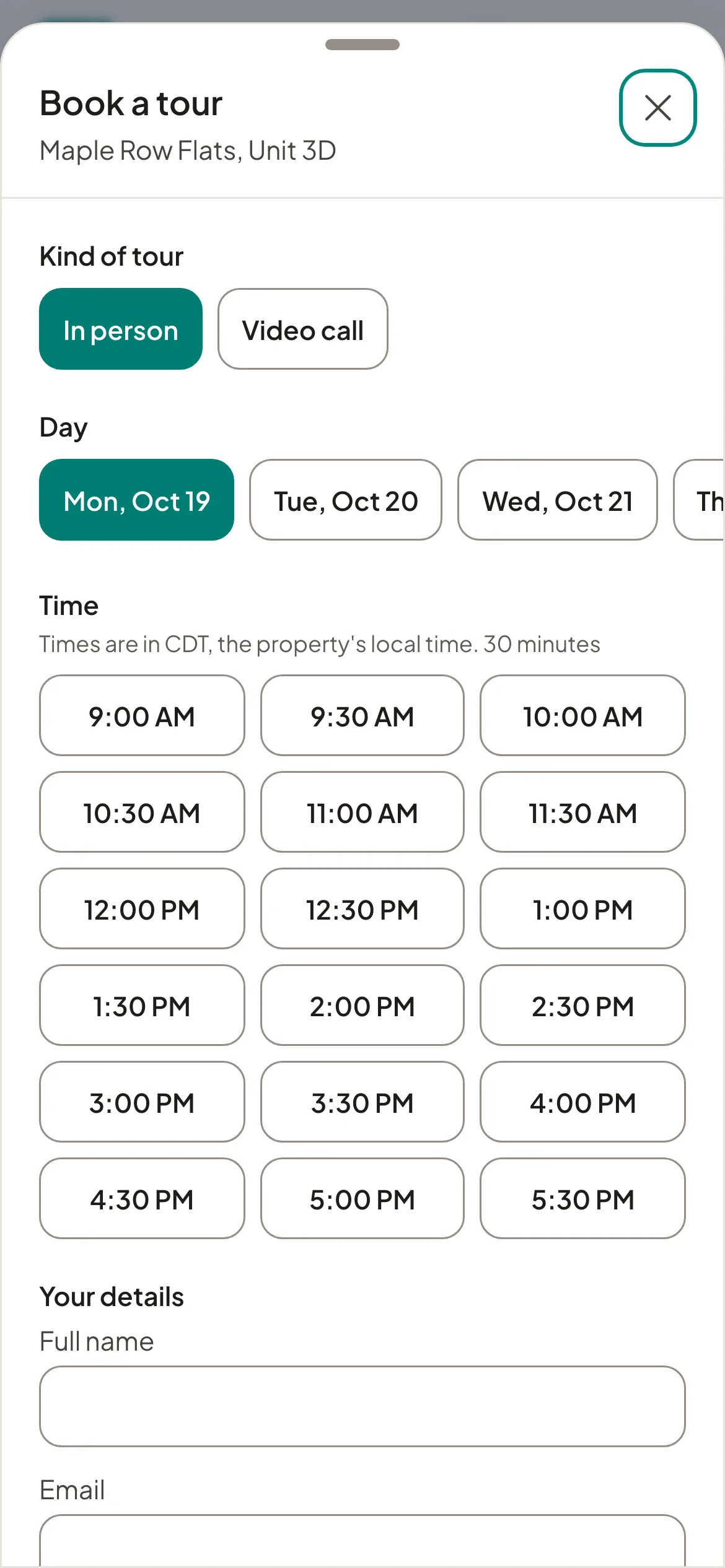
On your listing, renters select Schedule tour, pick a kind, a day and an open time in the next two weeks, and give their name and email. They do not need an account. Two people cannot book the same time.
Answer tour requests
Requests waiting for you are marked Needs your answer. Select Confirm or Decline; on a confirmed tour, Cancel. You can add a note for the renter. To confirm a video tour, add the Video call link. The renter is emailed each time.
After a tour, select Mark completed or Did not attend. Renters can reschedule from their account; you cannot move a tour for them, and you cannot book a tour on someone's behalf.
Booking, cancellation and reschedule emails go to the property's manager, and everyone gets a reminder about a day before a confirmed tour.