
Send a lease for e-signature
Prepare a lease from an approved application, send it to every tenant to sign online, then countersign.
Create the lease
- Step 1In Applications, open an approved application and select Create lease.
- Step 2Check the Start date, Length in months, Monthly rent and Security deposit, add any Special conditions, then select Create lease.
- Step 3The signing page opens. You can come back to it from Leases with Prepare and send.
Prepare and send
- Step 11. Lease text: choose the lease. Select Upload your own lease to use your own PDF, up to 10 MB. Holuway adds the disclosures the law requires and a certificate of completion.
- Step 22. Terms and disclosures: rent, deposit and dates come from the lease you drafted. Answer the rest.
- Step 33. Other adult tenants: add everyone else who will live in the home and should sign. Each gets their own link by email and does not need an account.
- Step 44. Review and send: select Save draft, then Preview PDF, check it, and select Send for signature.
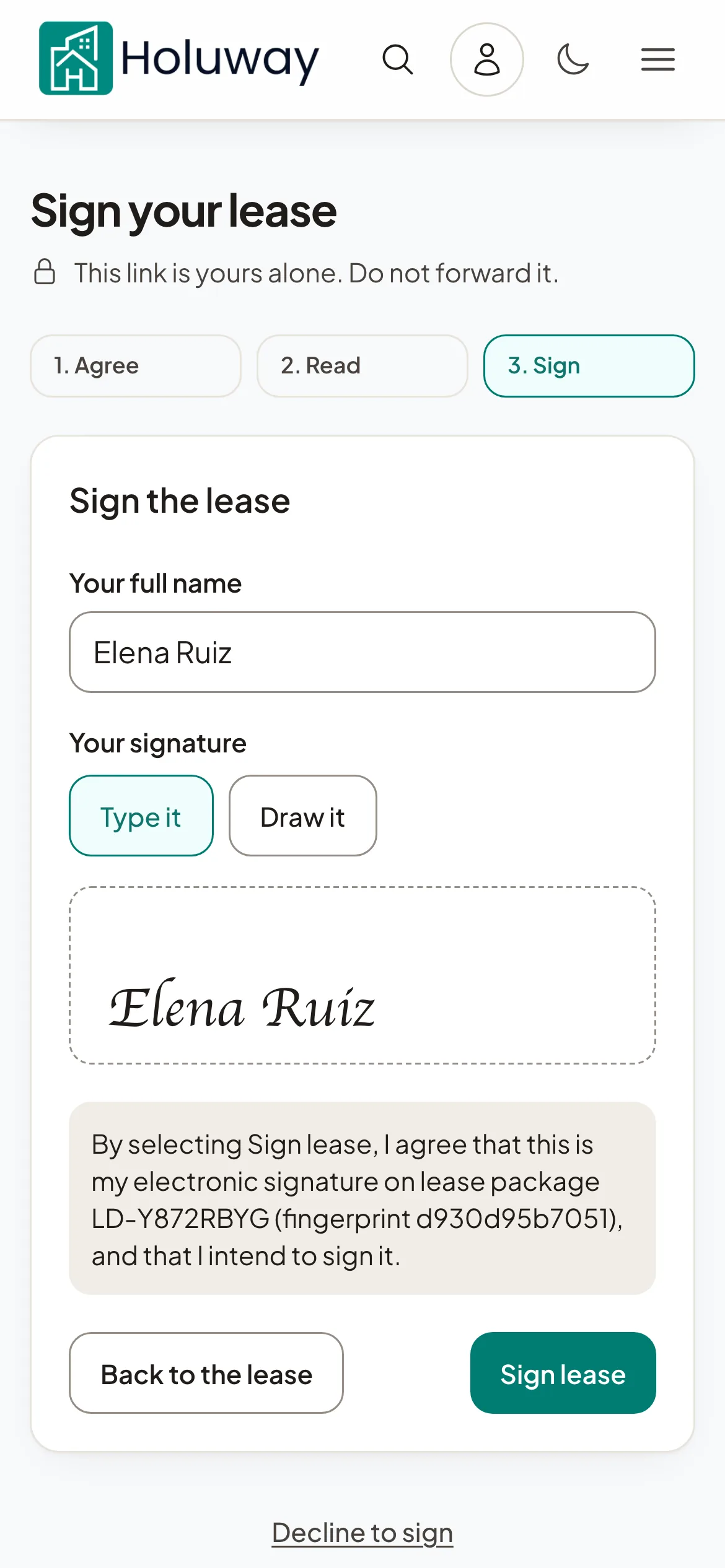
Signing links work for 7 days, and tenants who have not signed get reminders. Once sent, a lease cannot be edited. To change it, select Withdraw to correct, say why, then correct it and send it again. Tenants are emailed, and signatures already given on that version are set aside.
Countersign
When every tenant has signed, type or draw your signature, tick the box and select Countersign and complete. The lease becomes active and its move-in charges, such as the deposit and first rent, are added to its ledger. Everyone gets the signed lease, and the Audit trail shows each step.
If a tenant declines to sign, you see their reason and can correct the lease and send it again.