Open a resident portal
Give each property a branded portal where residents pay rent, ask for repairs, write to you and read your news.
Set up the portal
- Step 1Open Resident portals. Every property has its own.
- Step 2Select Set up on the property. The portal starts as a draft with its own address.
- Step 3Under Address, check the Subdomain. Changing it later breaks links you already shared.
- Step 4Under Branding, set the Portal name, colors, layout, a welcome message, a logo and a cover image.
- Step 5Under Contact, add your office hours, email, phone and emergency line.
- Step 6Under What residents can do, turn off anything you handle another way: paying rent, repairs, messages, documents or announcements.
- Step 7Select Save changes, then Publish.
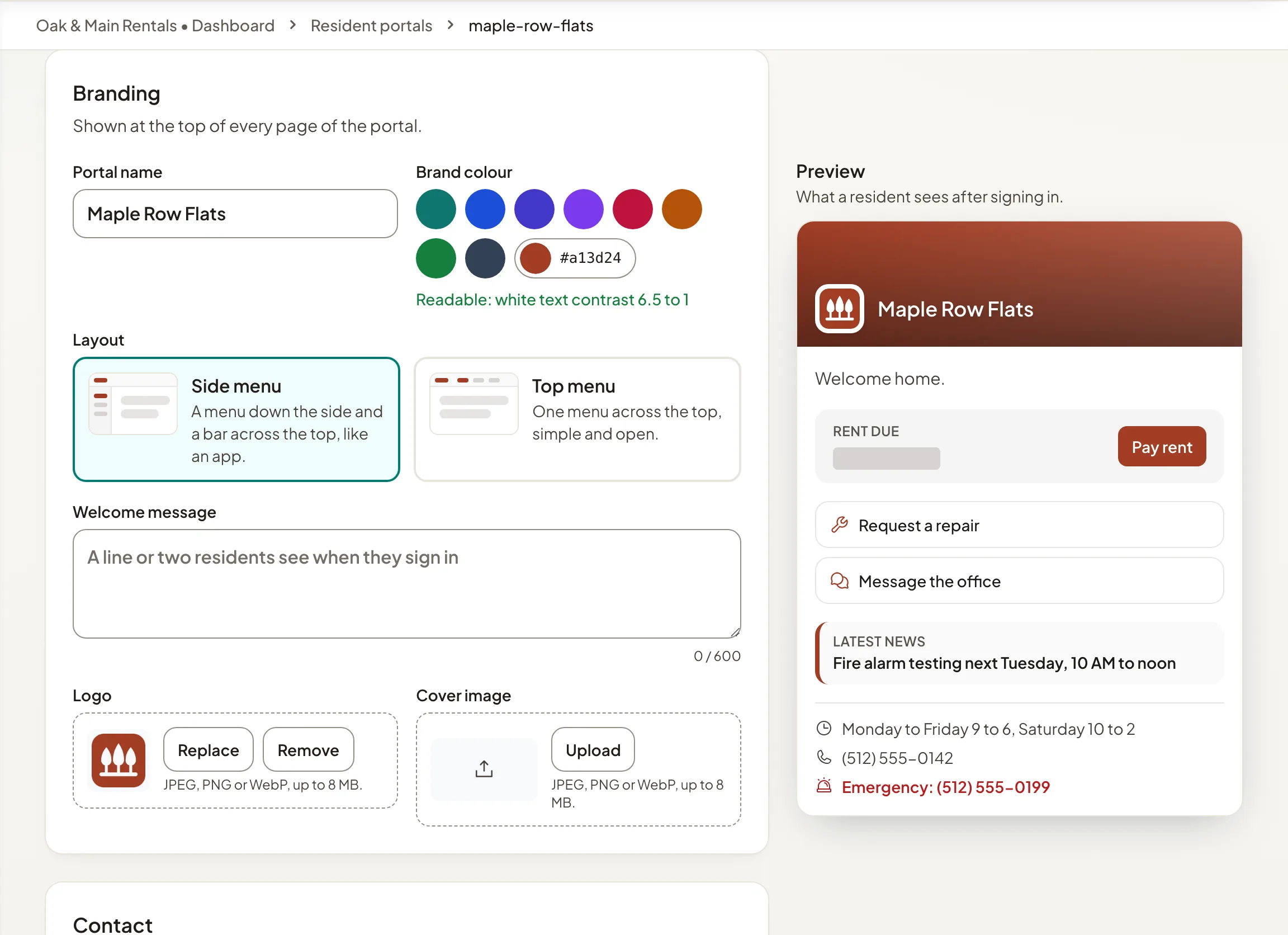
Until you publish, only your team can see it; the Preview shows what a resident sees. Select Pause to close it for a while; residents see a notice, and their records stay safe.
How residents get in
Residents sign in with their Holuway account. Anyone with a current lease at the property gets in; nobody else does. There is no separate portal invitation: tenants get their account from the lease you send or record.
The portal shows the same lease, payments, repairs and messages as the Holuway dashboard, limited to that property.
Your own domain
A portal can also answer on a domain of yours, such as a subdomain of your company's website. Add it under Address options, then add the DNS records the page shows; Holuway checks for them on its own, or select Check now.