
Add your first property
Create a property with its name, type and address. It starts as a draft that only your team sees.
Create the property
- Step 1Open Properties and select Add property.
- Step 2In Basic information, enter the Property name, its type, the Street address, City, a two letter State and the ZIP code, and the number of units. These are the only required fields.
- Step 3Select Next to go through the other steps: Property details, Management info, Financial defaults, Policies and amenities, and Photos and media. You can leave them empty and fill them in later.
- Step 4On the last step, select Create property.
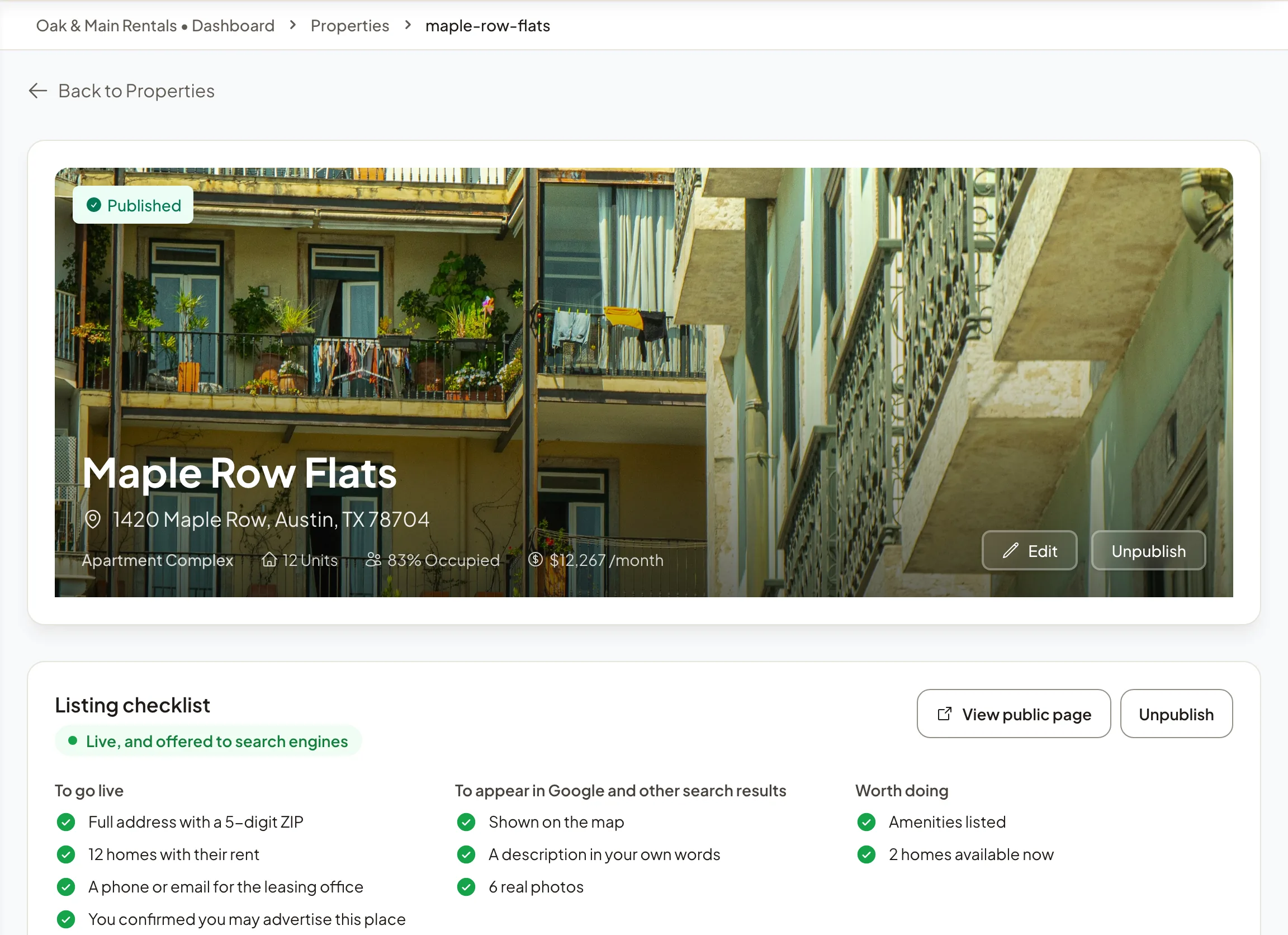
The property opens on its own page as a draft. Renters cannot see it until you publish it.
What to add next
- The homes you rent there, each with its rent: see Add homes to a property. The number of units you typed does not create them.
- Photos, a description and the office phone or email.
- Fees besides rent, in the property's Fees section.
- Tenants who already live there, under Current tenants: see Record a current tenant and lease.
Then publish it: see List your property for free.
Many properties at once
If your properties are in a spreadsheet or another system, import them instead of typing each one.
Note: Save draft in the property form only keeps the form in this browser, and there is no way to reopen it yet. Select Create property to keep your work.